CSS Types and Selectors

Hey There, I am going to start my new blogging journey, as I am learning full stack web development and I will sharing my all learning here. Keep learning Keep Growing :)
CSS stands for Cascading Style Sheet. CSS can be use to provide styling to our webpage that contain HTML element. It set the background color,bold,font-size,font-style etc...
There are 3 types in CSS
Inline CSS
Internal & Embedded CSS
External CSS
Inline CSS
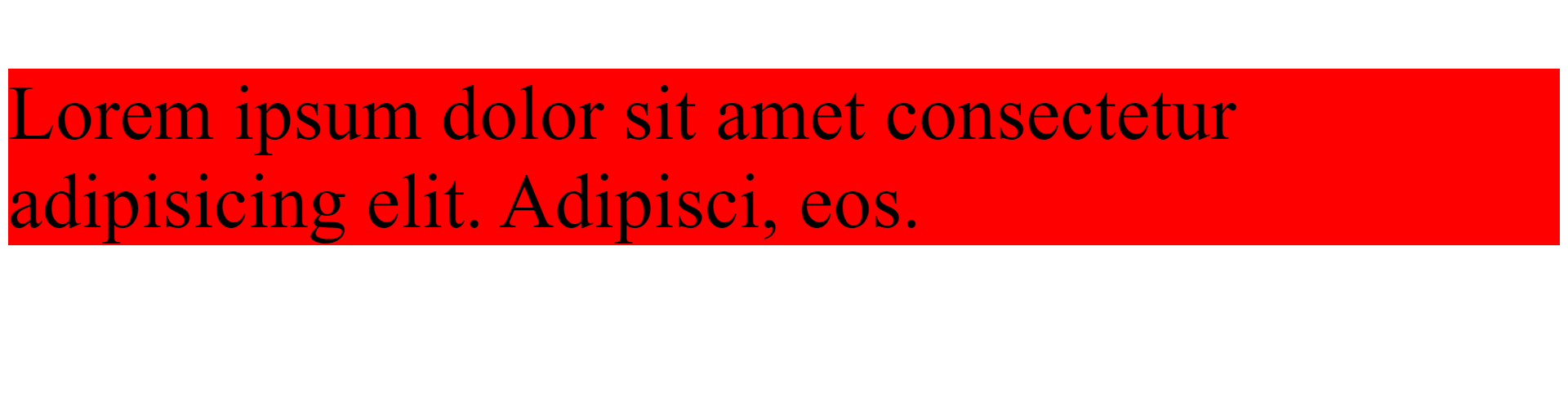
Inline CSS that contain where all the styles has written in the body tag attached with different attribute such font-size,font-color,background color etc.
INPUT
<!DOCTYPE html>
<html lang="en">
<head>
    <meta charset="UTF-8">
    <meta http-equiv="X-UA-Compatible" content="IE=edge">
    <meta name="viewport" content="width, initial-scale=1.0">
    <title>Inline CSS</title>
</head>
<body>
    <p style="background-color: red; font-size: 2cm; font-family: 'Times New Roman', Times, serif;">Lorem ipsum dolor sit amet consectetur adipisicing elit. Adipisci, eos.</p>
</body>
</html>
Output
Internal & Embedded CSS
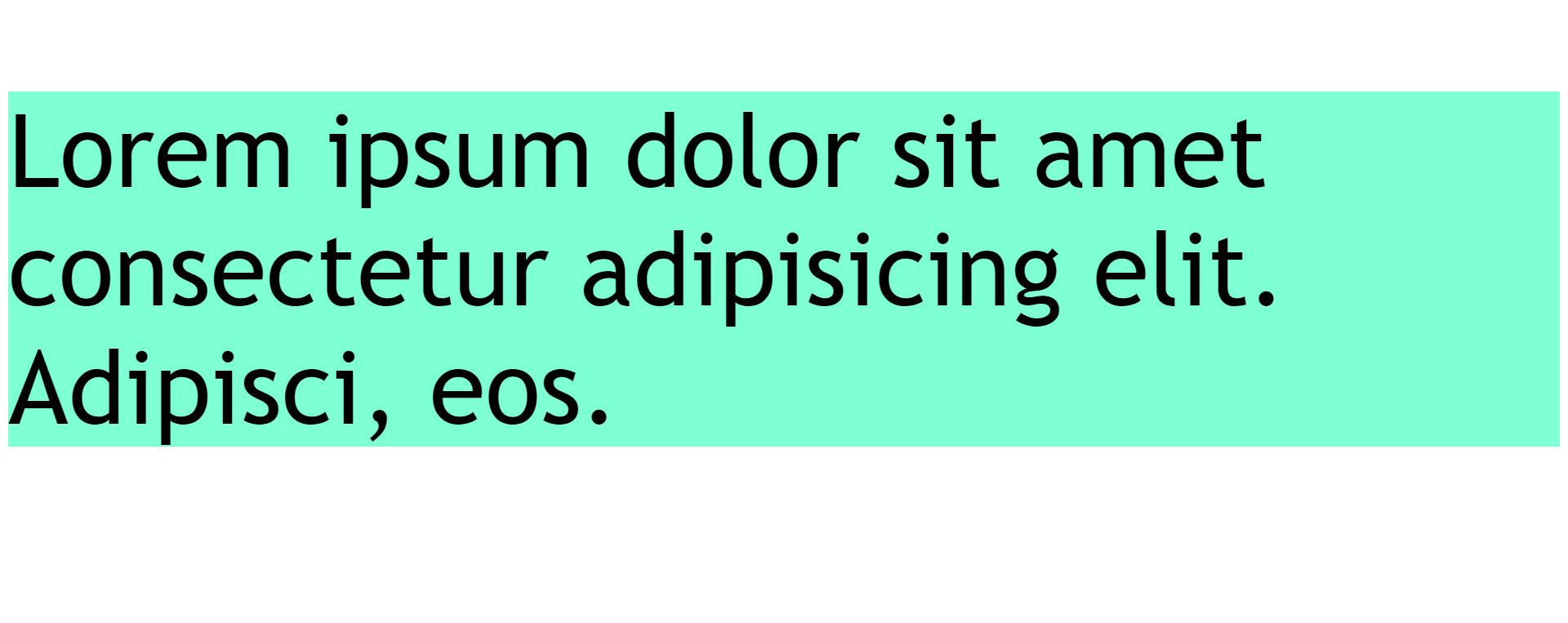
This can be used when a single HTML document must be styled uniquely. The CSS rule set should be within the HTML file in the head section i.e the CSS is embedded within the HTML file.
Input
<!DOCTYPE html>
<html lang="en">
<head>
    <meta charset="UTF-8">
    <meta http-equiv="X-UA-Compatible" content="IE=edge">
    <meta name="viewport" content="width, initial-scale=1.0">
    <title>Internal CSS</title>
    <style>
        .style{
            background-color: aquamarine;
            font-size:100px;
            font-family: 'Trebuchet MS', 'Lucida Sans Unicode', 'Lucida Grande', 'Lucida Sans', Arial, sans-serif;

        }
    </style>
</head>
<body>
    <p class="style">Lorem ipsum dolor sit amet consectetur adipisicing elit. Adipisci, eos.</p>
</body>
</html>
Output
External CSS
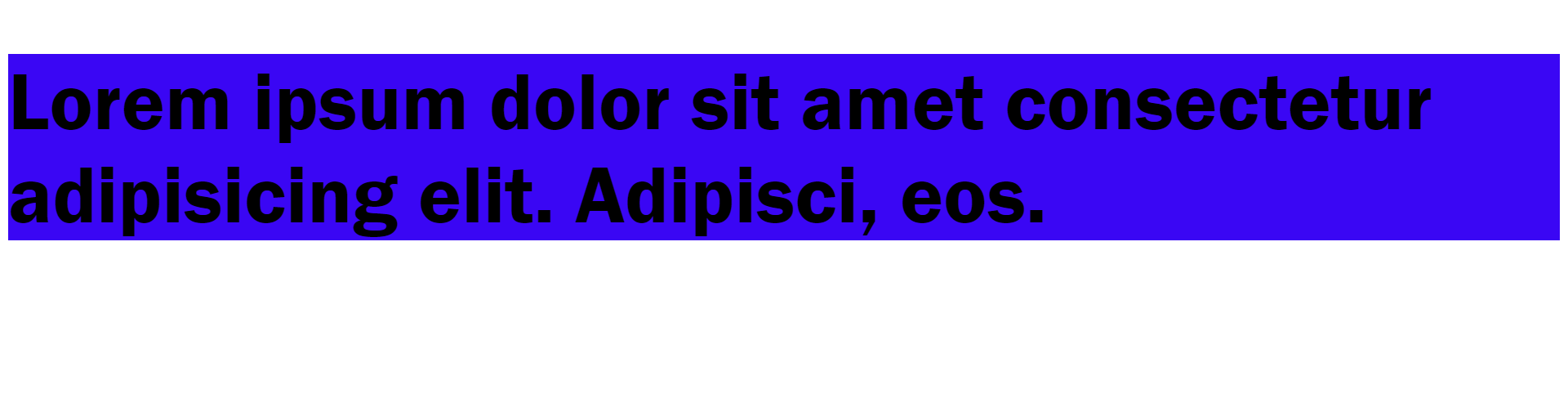
In external css we can create separate file with .css extension and in the we can write all the styles to the HTML tags and can refer this css files in html head tag by using link reference tag.
Input
Style.css
.style{
    background-color: rgb(58, 6, 244);
            font-size:80px;
            font-family:'Franklin Gothic Medium', 'Arial Narrow', Arial, sans-serif;
}
Index.html
<!DOCTYPE html>
<html lang="en">
<head>
    <meta charset="UTF-8">
    <meta http-equiv="X-UA-Compatible" content="IE=edge">
    <meta name="viewport" content="width, initial-scale=1.0">
    <title>External CSS</title>
    <link rel="stylesheet" href="./style.css">
</head>
<body>
    <p class="style">Lorem ipsum dolor sit amet consectetur adipisicing elit. Adipisci, eos.</p>
</body>
</html>
Output
CSS Selectors
Selector can define which type of css selector need to be select for designing the web pages. There are different types of selector
Universal Selector
Individual Selector
Class Selector
ID Selector
AND Selector
Combine Selector
Direct Child Selector
Sibling Selector
1. Universal Selector
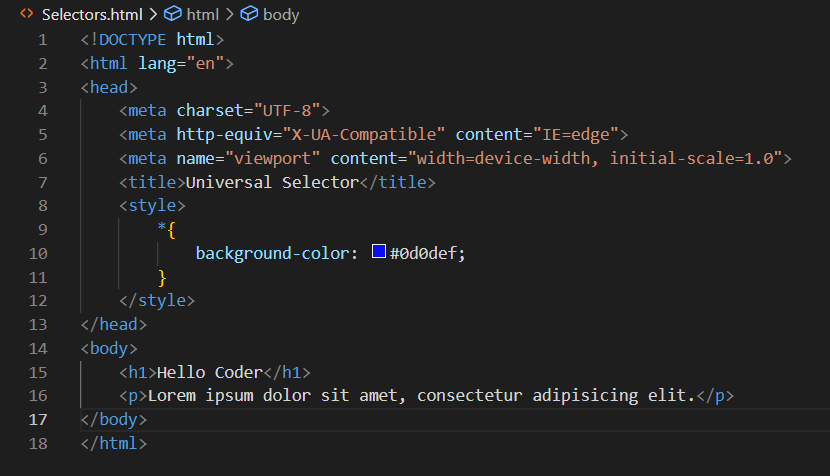
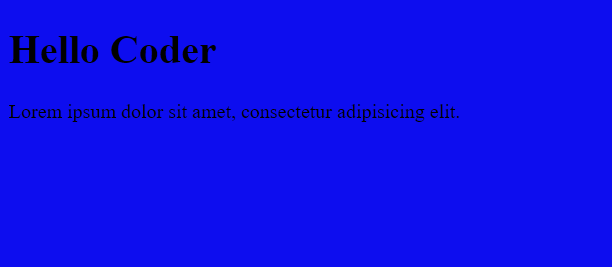
Universal selector select all the element that are present in HTML tags.
syntax: *{ style properties }
Input
Output
2. Individual Selector
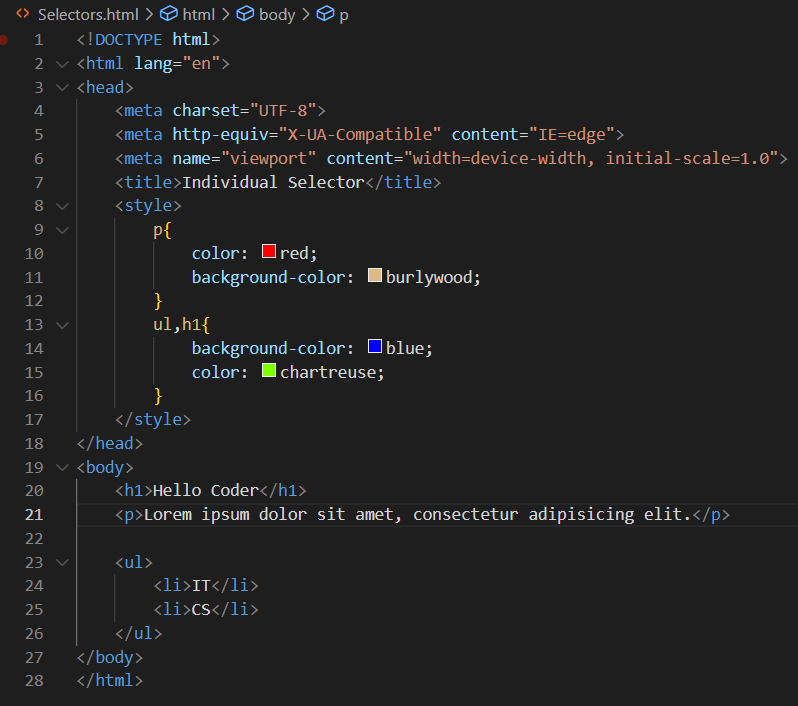
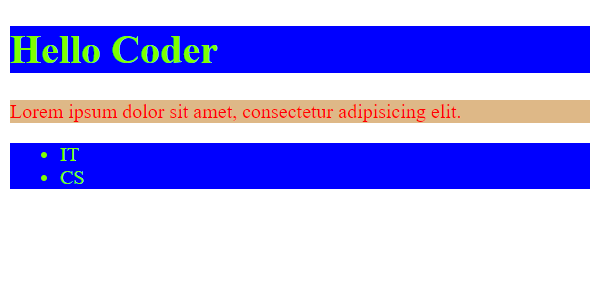
In Individual selector we can style to multiple elements in the HTML file such as P,li, etc
Syntax: element{ style properties}
Input
Output
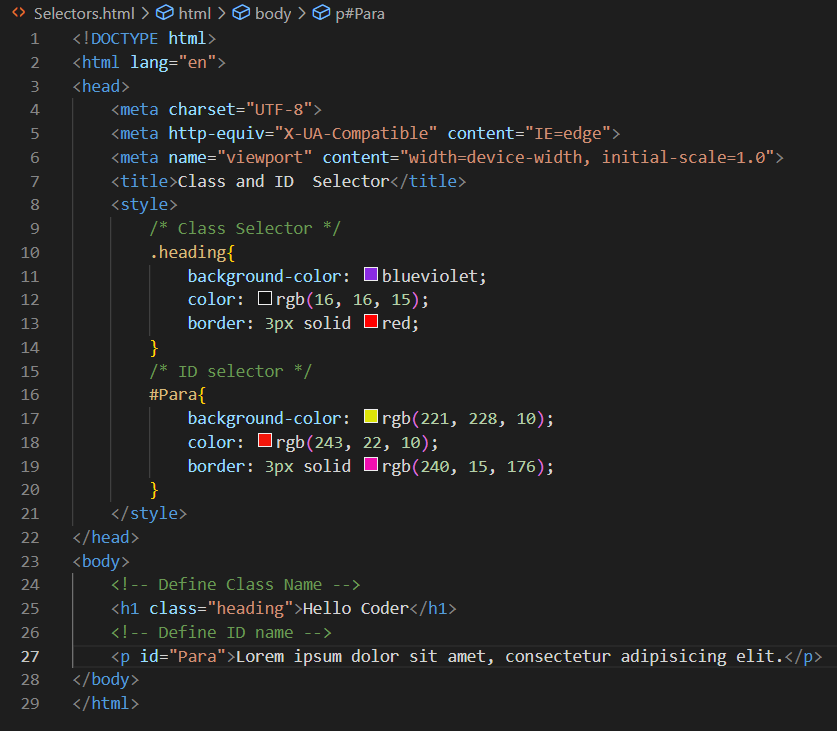
3.Class Selector & ID Selector
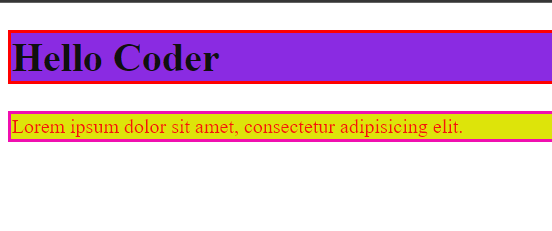
In class and ID selector it will matches all the attribute with the same class name or ID name. class will denote with'.' and ID will denote with'#'.We can use multiple different class name for different attribute but can not use multiple ID it should be unique.
In head section for assign style properties to class name and ID below syntax will use
Syntax for class: .clss_name{ style properties}
Syntax for ID: #ID_name{ style properties}
For Creating class and ID in body section below syntax will use Syntax for class: [class~=class_name] { style properties }
Syntax for ID: [ID~=class_name] { style properties }
Input
Output
4. AND Selector
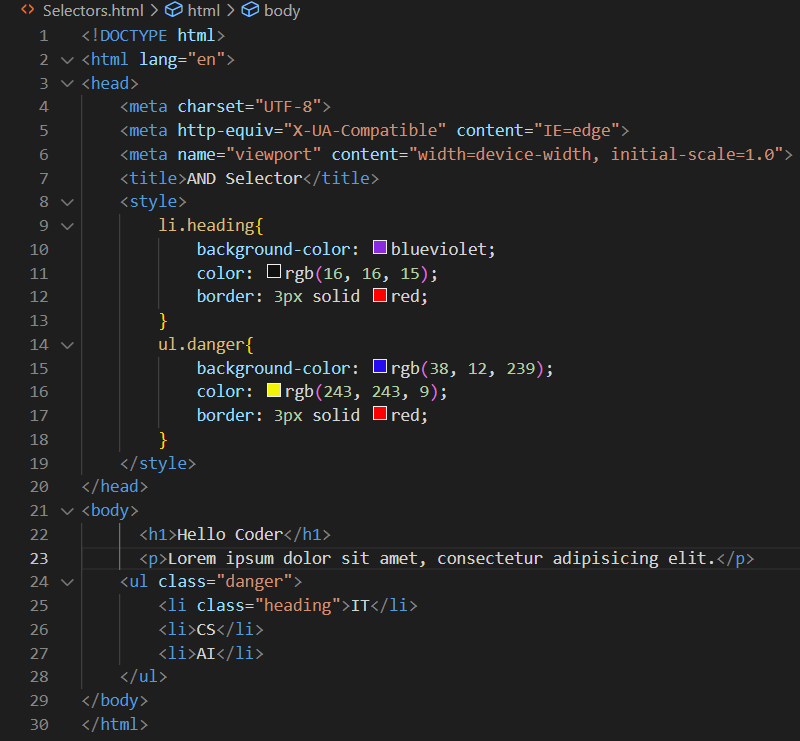
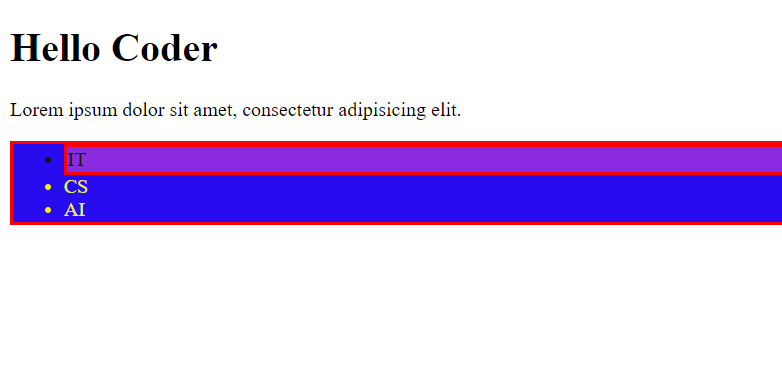
As a name suggest and means if we have to assign properties to multiple classed or subclasses we will use AND selector.
Syntax: element.element{ style properties}
Input
Output
5. Combine Selector
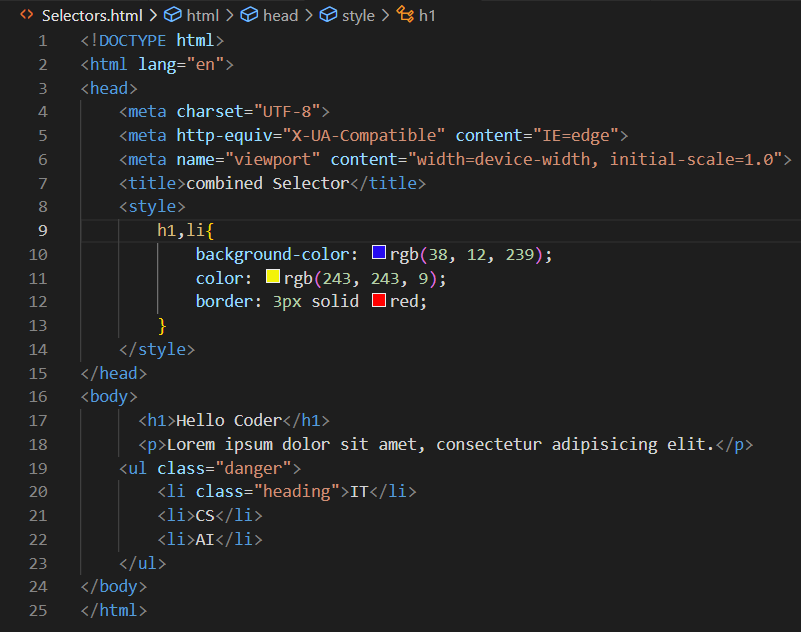
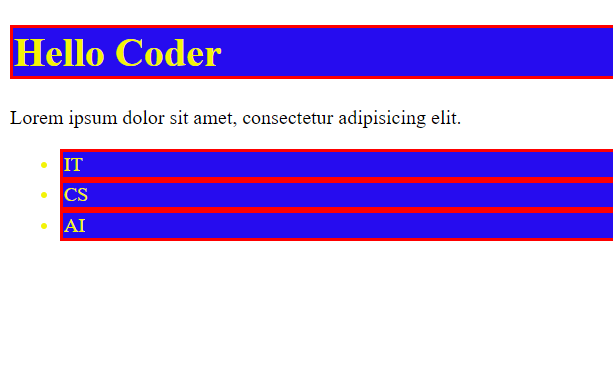
Suppose if you want to apply style to more that one element at that time we can use combine selector
Syntax : Element,Element{ Style properties}
Input
Output
6. Direct Child Selector
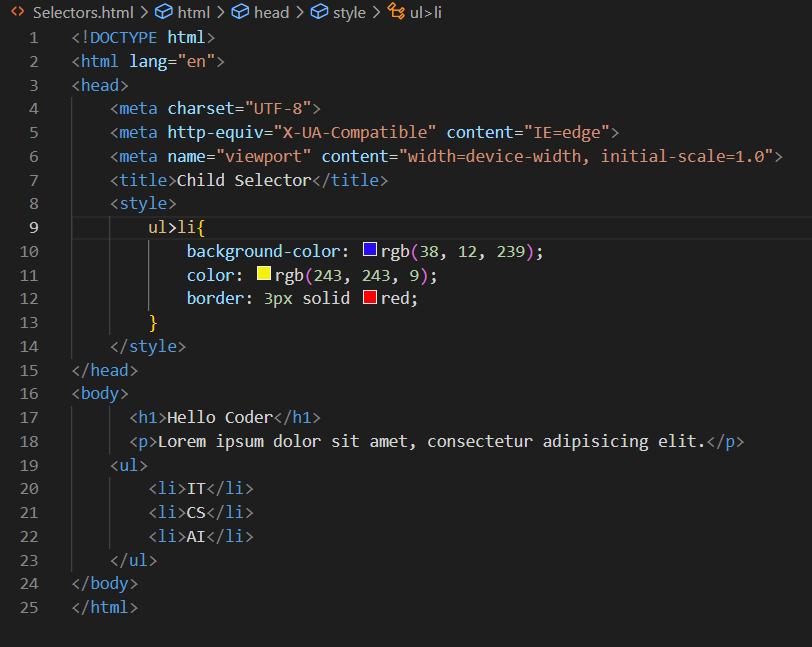
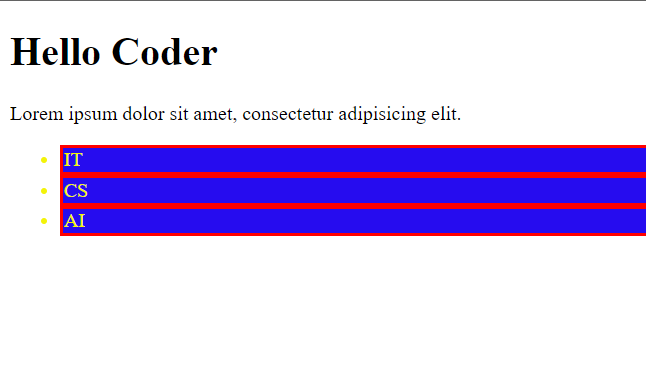
Suppose if you want style those element inside another element at that time we are use direct child selector. Direct child selector can be define using'>' this symbol. It matches only those elements matched by the second selector that are the direct children of elements matched by the first.
Syntax : Element 1>Element2{ Style Properties}
Input
Output
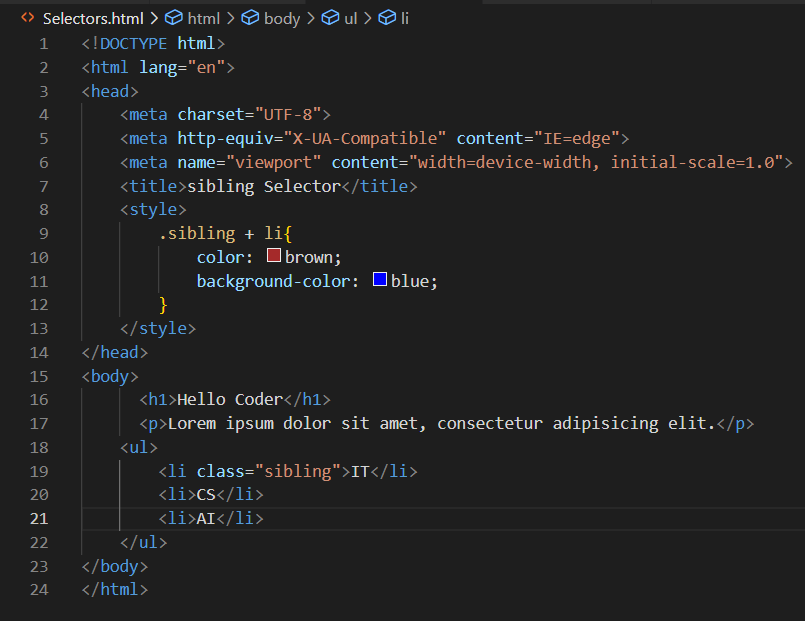
7. Sibling Selector
Sibling selector directly select element next to that current element where sibling selector was applied.
Syntax : former_element + target_element { style properties }
Input
Output